Axiom Wallet Tracker: Follow Wallets Without Copying Bad Trades
Table of Contents
- How to add and label wallets on Axiom
- What every tracker column, button and alert shows
- Wallet Tracker
- Wallet Manager
- Created
- Name
- Actions
- Search by name or address
- Import
- Export
- Add Wallet
- Live Trades
- Live Trades header controls
- Chart alerts
- Buys versus sells
- Trader Scan
- Tweet Monitor
- Why following a wallet isn't a strategy
- You buy after them, at the price they moved
- You pay the full fee stack on both legs
- Your slippage setting has to absorb the move
- A failed chase still costs money
- Settings persist from your last trade
- What the tracker cannot tell you
- How to use the tracker without copying blindly
- Methodology and last updated
 Axiom The Axiom wallet tracker lets you follow any Solana wallet address, label it with an emoji and a name, and see live alerts when it buys. It opens from the bottom left corner of the terminal as a panel with a Wallet Manager tab and a Live Trades tab, and its buy markers show on token charts while you browse Pulse.
That's close to everything Axiom's documentation says about it. Both wallet-tracking pages are a few lines long, and most of the panel's controls show up in Axiom's screenshots with no explanation at all. This guide walks through adding wallets step by step, then defines every column, button and alert in the style of our Pulse glossary, marking each one by where its definition comes from. The last part covers the costs that turn a winning wallet into a losing copy.
Info
What this page is, and is not. It explains how the tracker works and what it shows. It does not name wallets to follow, and nothing here is a trade idea or a recommendation to buy anything. A wallet address is public data. What you do with an alert is a separate decision, and the costs of that decision are covered below.
How to add and label wallets on Axiom
Axiom's Adding Wallets page lays the process out as three steps. You need an Axiom account first; if you do not have one, start on axiom.trade and follow how to sign up for Axiom.
Open the Wallet Tracker
Axiom's docs place it in the bottom left corner of the terminal. It opens on the Wallet Manager tab, which lists every wallet you already follow.
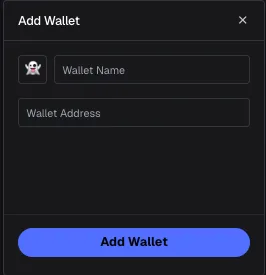
Click Add Wallet and fill in the form
Pick an emoji, type a name, and paste the wallet address. Then click Add Wallet to save it. The emoji and the name are your labels; the address is the only field that identifies the wallet on chain.
Watch for the signals
Axiom's docs promise live alerts on charts while tracked wallets are buying. They show up as markers on a token's chart and as rows in the Live Trades tab.
Source: Axiom documentation, used under fair use for educational purposes
Some notes on the form itself. The name is free text, so write down why you added the wallet. You will not remember in six weeks. The emoji is the only visual cue in a busy feed, so a consistent emoji per category is easier to scan than a random one per wallet. Double-check the address before saving: one wrong character gives you a different, real wallet, and the tracker has no way to know you meant another one.
 Moving a list from BullX. Axiom's docs add one more option: traders coming from platforms like BullX "can directly import wallets in our custom wallet tracker using the import feature." The import format is not documented. BullX has since shut down trading, so whether you can still pull your list out of it depends on what BullX still lets you export; our BullX migration guide covers that side.
Adding a wallet takes three fields: an emoji, a name and an address. The labels exist only for you. Axiom does not publish how many wallets you can track, how fast an alert fires after the wallet's transaction lands, or a file format for imports.
What every tracker column, button and alert shows
Each entry below gives the label as the tracker renders it and where the definition comes from. The provenance follows the same three grades as the Pulse glossary. Documented means Axiom's documentation text describes it. Documented but underspecified means Axiom names the feature and what it is for, without publishing the rule behind it. Undefined means the control appears in Axiom's own screenshots and the docs never explain it, so the description here is what the screen shows and nothing more.
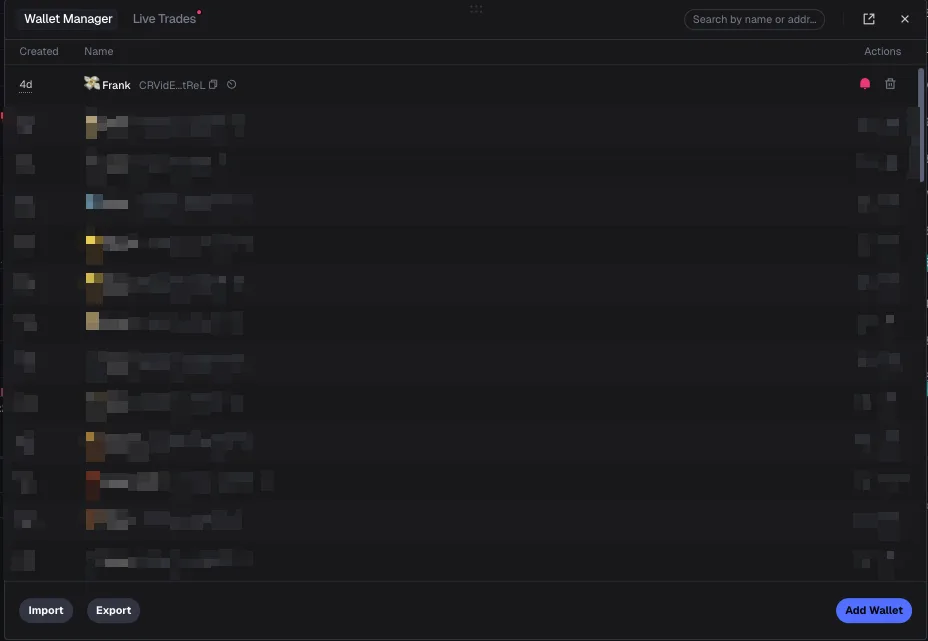
Source: Axiom documentation, used under fair use for educational purposes. Axiom blurred all but one row in its own image.
Wallet Tracker
Documented. The panel as a whole, which Axiom says sits "in the bottom left corner." Axiom's pitch for it is that it eliminates "the need of telegram wallet bots," meaning the alerts you would otherwise route through a separate Telegram bot now arrive inside the terminal.
Wallet Manager
Undefined. The first tab in Axiom's screenshot, and the list of wallets you follow. The docs show it and never name it in their text. Three columns are visible: Created, Name and Actions.
Created
Undefined. A short duration such as "4d" next to each wallet. It most plausibly shows how long ago you added the wallet to your list, though Axiom does not say so. It does not tell you how old the wallet itself is.
Name
Documented. The emoji and name you typed in the Add Wallet form, followed by a shortened version of the address with a copy icon beside it. A second small icon after the copy button is not explained anywhere in the docs.
Actions
Undefined. Two icons per row in Axiom's screenshot: a bell and a trash can. The bell reads as a per-wallet notification toggle and the trash can as remove-from-list, but the docs describe neither, including what a muted wallet still does in the Live Trades feed.
Search by name or address
Undefined. A search box at the top of the panel, which per its own placeholder text filters your list by label or by address.
Import
Documented. The import feature Axiom mentions for traders coming from BullX. The button sits at the bottom left of the Wallet Manager.
Export
Undefined. The button beside Import. The docs never mention it, so the file format and what it includes are unpublished.
Add Wallet
Documented. Opens the three-field form shown above.
Live Trades
Documented but underspecified. The second tab, which Axiom's Monitor Wallets page describes as a way to "track what your wallets that you added to the tracker are buying in real time while looking at Pulse." In Axiom's screenshot each row shows a time, the tracked wallet's emoji and name, the token with what looks like its age, a SOL amount and a dollar figure. None of those columns carries a header and the docs label none of them, so the dollar figure could be market cap or trade value and Axiom does not say which. Amounts appear in different colors, and Axiom does not explain those either.
Live Trades header controls
Undefined. Above the feed in Axiom's screenshot sit a bell icon, a "P1" label and a lightning bolt with a SOL amount. The lightning bolt matches the Quick Buy button Axiom documents on Pulse, and "P1" reads as a preset. If that reading is right, it means you can fire a preset buy straight from the tracker feed, which is worth knowing before you click anything there. The docs do not confirm it.
Chart alerts
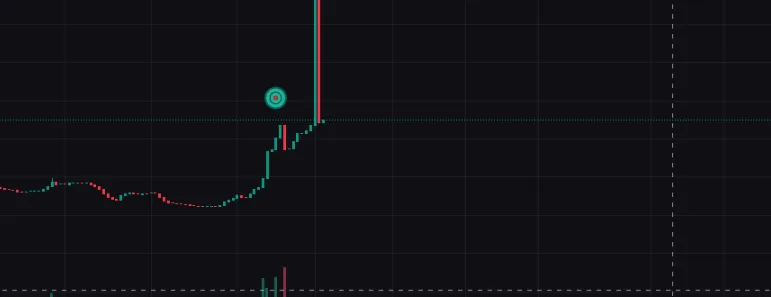
Documented but underspecified. Axiom's third setup step is "Enjoy Fast Signals on Charts," with "live alerts while influencers and smart money wallets are buying to track confluence and hype." In the docs image the alert is a round marker on the token's price chart at the point of the buy. Axiom does not publish how quickly the marker appears after the transaction lands, and it does not define "smart money."
Source: Axiom documentation, used under fair use for educational purposes
Buys versus sells
Undefined. Every line of Axiom's tracker documentation talks about buying. Whether a tracked wallet's sells also raise an alert or a chart marker is not stated. For a copier that's the bigger gap, since the exit is the half of the trade you most need to see.
Trader Scan
Documented. A separate feature, embedded in the orderbook interface, that Axiom's Trader Scan page says shows every trader on a token with "how much they've bought or sold, their current balance, and even their realized PnL," plus how long each wallet has held. It works on any token rather than only on wallets you follow, and it is the closest thing in Axiom to a way of checking what a tracked wallet did after its buy.
Tweet Monitor
Documented. Axiom's X-account tracker, the social counterpart to the wallet tracker. Its docs page says it is free for users with at least 5 SOL in trading volume and lets you add your own handles and customize notifications.
Try the Wallet Tracker on Axiom
Sign up through our link and the documented 10% referral fee discount applies to every trade you place.
Trade on AxiomWhy following a wallet isn't a strategy
Axiom pitches the tracker as a way to spot "confluence and hype," which is fair. An alert tells you a wallet bought. Whether the same trade works for you is a different question, and several costs sit between the wallet's result and yours. The figures below all come from our fee schedule and our trade settings guide. Nothing new is added here.
You buy after them, at the price they moved
The alert fires because the tracked wallet's buy already landed. On a thin pool, that buy moved the price, so you enter higher than they did. Axiom does not publish alert latency, and every second between their fill and yours is price movement you pay for and they do not. If several traders follow the same wallet, they all pile into the same few seconds, and each of those buys moves the price against the next one.
You pay the full fee stack on both legs
Axiom charges 1% gross on every spot trade, 0.95% net at the Wood tier and 0.75% at Champion after SOL cashback. You pay it on the buy and again on the sell. On a Pump.fun-origin token the pool's own fee stacks on top, which Pump.fun publishes as tiered by market cap from roughly 1.25% down to about 0.30%. Add the priority fee and Jito tip, both defaulting to 0.001 SOL, and slippage, and our fee guide's estimate is that a round trip on a fresh launch can run past 4% all-in. The wallet you are copying may be paying a different rate on a different platform. You cannot see their costs, only their entry.
Your slippage setting has to absorb the move
Our settings guide's practitioner range for a fresh launch on a thin pool is 10 to 20% or more just to fill, against roughly 1 to 3% on a deep, established token. Those are heuristics, not measurements. A copy trade on a new token sits at the high end, and a high tolerance is also a pre-authorization of the price movement a sandwich attacker needs, which is why MEV protection mode matters most on exactly these trades.
A failed chase still costs money
Set the tolerance too tight and the transaction reverts. On Solana a failed transaction still consumes network gas and any priority fee you attached, so chasing a fast mover can cost you several fees and leave you with no position.
Settings persist from your last trade
Slippage, MEV mode, priority fee and Quick Buy presets all carry over between trades on Axiom. If you set up for a launch and then act on an alert for something liquid, the launch settings are still applied. If the Live Trades header really is a Quick Buy control, the preset amount it fires is whatever you set last.
A tracked wallet's profit and your profit are different numbers. You enter after their buy moved the price, you pay Axiom's fee twice plus the pool's fee and tips, and you need a looser slippage setting than they did. A winning wallet can produce a losing copy without anyone doing anything wrong.
What the tracker cannot tell you
A wallet is not a person. One trader can run many wallets, and Axiom's own multi-wallet docs pitch spreading activity across wallets partly for privacy. A wallet that looks like one trader's whole record may be a slice of it. The tracker shows buys, and Trader Scan shows realized PnL token by token, but neither gives you the wallet's full record across every token and every exit. And nothing stops the owner of a widely followed wallet from selling into the buyers its alerts bring in.
Warning
Your tracked-wallet list is account data, not just a local setting. In February 2026, investigator ZachXBT reported that an Axiom employee had abused an internal support dashboard that could show users' wallet history and tracked-wallet lists. Axiom confirmed the abuse of internal tools and removed access. No funds or keys were reported compromised. If the list itself is sensitive to you, read our account of the incident before you build one.
For comparison,  GMGN documents copy trading more directly than Axiom does, which our Axiom vs GMGN comparison covers. Automated copying saves you the click. Every cost above still applies.
How to use the tracker without copying blindly
Treat an alert as a reason to open the token and look. When a marker appears, open the token's Pulse metrics and check liquidity and holder concentration before anything else, because liquidity decides what your slippage will cost. Open Trader Scan and see what the tracked wallet has done on that token since its buy. Then set slippage and MEV mode for the token in front of you rather than the last one you traded, and size the position as if the alert did not exist.
Trade on Axiom
Sign up through our link for the 10% fee discount Axiom documents for referred users, applied automatically.
Trade on AxiomMethodology and last updated
Every feature description above was read from Axiom's published documentation on October 26, 2026: the Adding Wallets and Monitor Wallets pages for the tracker itself, plus the Trader Scan, Tweet Monitor and Multi-wallet pages for the features around it. Both wallet-tracking pages showed a last-updated note of about a year old when we read them, so the live interface may have moved on from Axiom's screenshots.
Where Axiom's text describes a control, the entry follows that wording. Where a control appears only in Axiom's screenshots, the entry is marked undefined and describes what is visible, without guessing at the rule behind it. The fee and settings figures come from Axiom's fee documentation and our own settings guide as cited there, with no new figures added on this page.
If a label in your terminal does not match an entry here, your screen is right and this page is behind.
Frequently Asked Questions
Axiom's documentation places it in the bottom left corner of the terminal. It opens as a panel with two tabs, Wallet Manager for the list of wallets you follow and Live Trades for a real-time feed of what those wallets are buying.
Open the Wallet Tracker, click Add Wallet, pick an emoji, type a name and paste the wallet address, then click Add Wallet to save it. Axiom also documents an import feature for traders moving a tracked-wallet list over from BullX.
No automatic copying is documented. Axiom describes the tracker as live alerts and a real-time feed of what tracked wallets are buying. Any trade you take off the back of an alert is a separate trade you place yourself, at your own settings and your own fees.
Axiom's documentation only talks about buys: alerts while tracked wallets are buying, and tracking what they are buying in real time. It does not say whether sells trigger an alert, so check the Live Trades feed in your own terminal rather than assuming either way.
No. You buy after the wallet you follow, so on a thin pool you pay a price its own buy already moved, plus Axiom's fee on the way in and out, the pool's own fee, any priority fee or tip, and slippage. A wallet that wins can still produce a copy that loses. Treat an alert as a prompt to look at the token, not as a decision.
Quoting a figure? Cite this pageShowHide
Plain-text citation
Axiompedia. "Axiom Wallet Tracker: Follow Wallets Without Copying Bad Trades." Published October 26, 2026, updated October 26, 2026. https://axiompedia.com/guides/trading/axiom-wallet-trackerHTML link
<a href="https://axiompedia.com/guides/trading/axiom-wallet-tracker">Axiom Wallet Tracker: Follow Wallets Without Copying Bad Trades — Axiompedia</a>Methodology and reuse
Every feature description on this page is taken from Axiom's published documentation and the screenshots it embeds, with the controls Axiom shows but never explains marked as undefined. The fee and settings figures are Axiom's published values as already cited on our fee and settings guides. They were read from the Axiom's own Wallet Tracking, Trader Scan and Tweet Monitor documentation on and re-verified against the live app. Sources change what they publish, so treat any figure older than that date as needing a fresh check — the date above is the one to compare against.
You may republish these figures with attribution and a link to https://axiompedia.com/guides/trading/axiom-wallet-tracker.
Axiompedia is an independent educational resource. It is not affiliated with, produced by, reviewed by, endorsed by, or sponsored by Axiom Innovations Inc., the operator of axiom.trade, or any of its affiliates. "Axiom" and the Axiom logo are trademarks of Axiom Innovations Inc., used here only to identify the product this site writes about. Full disclaimer.
Disclaimer: Nothing on this site is legal, tax, financial or investment advice. Trading carries risk, including total loss. Whether any activity described here is permitted where you live, and how it is taxed, depends on your jurisdiction and your circumstances. Consult a qualified professional and the primary sources before acting. Past performance does not indicate future results. Always check the primary source and do your own research before trading. This site contains referral links, which are disclosed on the disclosure page.
Ready to Start Trading?
Sign up on Axiom through our link for a 10% discount on trading fees, applied automatically with referral code axiompe.
Save 10% on Fees